CONTOUR®DIABETES app
Diabetes Management mit Köpfchen.
Messen, verfolgen und versenden Sie Ihre Blutzuckerwerte und erhalten Sie so ein besseres Verständnis für Ihren Blutzuckerverlauf.1
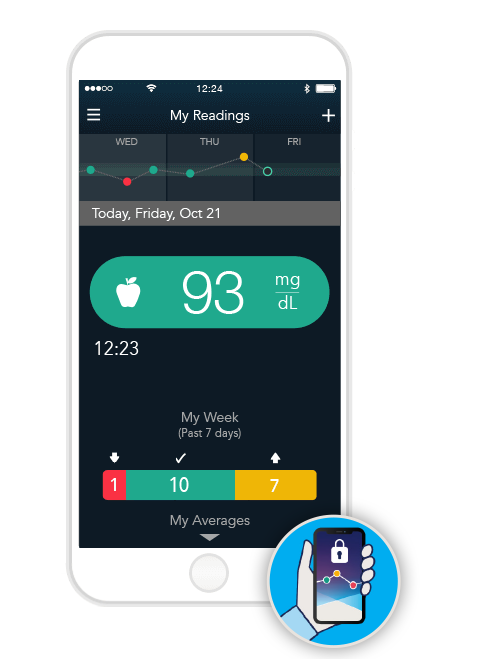
Ein Lichtblick für Ihren Diabetes
Erleichtern Sie sich Ihren Diabetesalltag. Koppeln Sie Ihr app-kompatibles Blutzuckermessgerät mit der CONTOUR®DIABETES App und Ihre Messwerte werden automatisch dahin übertragen.
✔ Erhalten Sie Warnhinweise, wenn Ihre Messergebnisse kritisch hoch oder niedrig sind
✔ Entdecken Sie Muster in Ihrem Blutzuckerverlauf
✔ Lassen Sie sich an Ihre nächste Messung erinnern
✔ Versenden Sie Ihre Diabetesdaten direkt an Ihren Arzt oder Diabetesberater
Alles auf einen Blick verfügbar – in Ihrem Smartphone.*
Kein handgeschriebenes Blutzuckertagebuch nötig!
Ergänzen Sie Ihr Messergebnis mit Informationen zu Kohlenhydraten, Medikamenten, Fotos Ihrer Mahlzeiten oderBewegungsminuten. So erhalten Sie ganz einfach ein vollständiges digitales Blutzuckertagebuch.

Installieren Sie die kostenlose App und starten Sie noch heute in ein modernes Diabetes Management!
Überprüfen Sie, ob Ihr Smartphone mit dieser App kompatibel ist
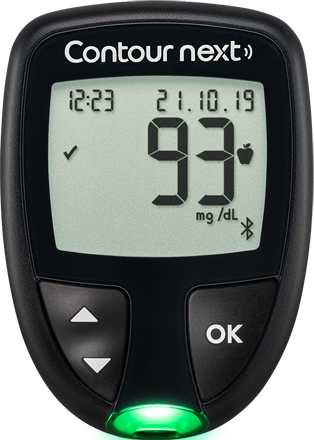
Benötigen Sie ein App-kompatibles CONTOUR® Blutzuckermessgerät?
Finden Sie das passende Messgerät für sich und testen Sie es kostenlos.

CONTOUR®NEXT
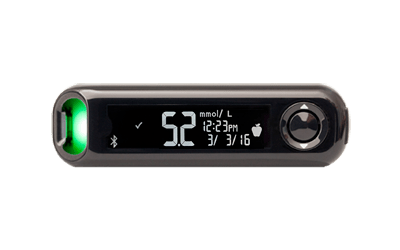
CONTOUR®NEXT ONE
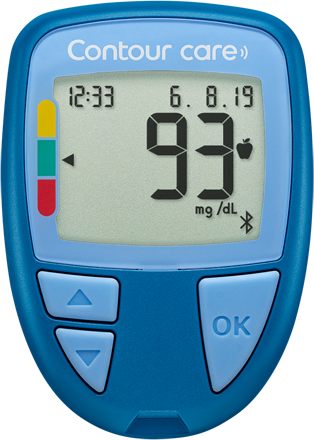
CONTOUR®CARE
*Auf einem kompatiblen Android- oder iOS-Gerät. Eine Liste kompatibler Geräte finden Sie unter compatibility.contourone.com
**Bitte besprechen Sie Ihre persönlichen Zielbereiche mit Ihrem Arzt.
1. Fisher W et al. User Experience With the Information–Motivation–Behavioral Skills (IMB)–Based CONTOUR®NEXT ONE Smart Meter and App System. Poster presented at the 78th Scientific Session of the American Diabetes Association (ADA); June 22-26, 2018; Orlando, Florida.
Wir möchten Ihnen mit speziellen App-Funktionen, Ihren Alltag mit Diabetes erleichtern.Deshalb wird die CONTOUR®DIABETES App ständig weiterentwickelt und unterstützt Ihr modernes Diabetes Management.
Ergänzen Sie Ihre Messwerte mit weiteren Informationen
Erfassen Sie Ihre Mahlzeiten, Medikamente oder Aktivitäten. Sie können sogar Fotos von Ihren Mahlzeiten, Notizen oder Sprachnotizen hinzufügen. So erkennen Sie wie sich Ihre Alltagsgewohnheiten auf Ihren Blutzuckerverlauf auswirken.

Intelligente Warnhinweise erhalten
Sie erhalten Warnhinweise und leicht verständliche Handlungsempfehlungen, wenn Ihr Blutzuckerspiegel einmal kritisch hoch oder kritisch niedrig ist. Benutzen Sie auch die Erinnerungsfunktion, um sich wieder auf Kurs zu bringen

Meine Muster
Entdecken Sie wiederkehrende Muster und Trends in Ihren Blutzuckerwerten. „Meine Muster“ hilft Ihnen die möglichen Gründe für zu hohe oder zu niedrige Werte herauszufinden und gibt einfache Tipps um Ihre Werte zu verbessern.

Messerinnerungspläne
Wählen Sie aus 11 unterschiedlichen Messerinnerungsplänen diejenigen aus, die individuell am besten zu Ihrem Alltag passen. So erfahren Sie, welche Auswirkungen Ernährung, Bewegung und Medikamente auf Ihren Blutzucker haben. Messerinnerungspläne helfen Ihnen effektiv und zum optimalen Zeitpunkt zu messen. So entstehen besonders aussagekräftige Messwerte. Das hilft auch Ihrem Arzt.

Berichte an Ihren Arzt senden
Versenden Sie Ihre Messwerte ganz einfach an Ihren Arzt, oder nehmen Sie sie ausgedruckt mit zu Ihrem nächsten Termin. So oder so sind Sie beide besser informiert und können sich beim Arztgespräch auf das Wesentliche konzentrieren.

Zielbereichsfarben für mehr Überblick
Ihr Messgerät überträgt die Messwerte automatisch an die CONTOUR®DIABETES App. Die App verwendet die gleichen Zielbereichsfarben in rot, grün oder gelb, um Ihnen einen leichteren Überblick und besseres Verständnis Ihres Diabetes zu ermöglichen. **

Installieren Sie die kostenlose App und starten Sie noch heute in ein modernes Diabetes Management!
Überprüfen Sie, ob Ihr Smartphone mit dieser App kompatibel ist
Benötigen Sie ein App-kompatibles CONTOUR® Blutzuckermessgerät?
Finden Sie das passende Messgerät für sich und testen Sie es kostenlos.
CONTOUR®NEXT
CONTOUR®NEXT ONE
CONTOUR®CARE
*Auf einem kompatiblen Android- oder iOS-Gerät. Eine Liste kompatibler Geräte finden Sie untercompatibility.contourone.com
**Bitte besprechen Sie Ihre persönlichen Zielbereiche mit Ihrem Arzt.
1. Fisher W et al. User Experience With the Information–Motivation–Behavioral Skills (IMB)–Based CONTOUR®NEXT ONE Smart Meter and App System. Poster presented at the 78th Scientific Session of the American Diabetes Association (ADA); June 22-26, 2018; Orlando, Florida.
Von der Installation bis zur täglichen Nutzung – der Einstieg in die CONTOUR®DIABETES App ist schnell und einfach. In nur wenigen Schritten können alle Vorteile Ihres app-kompatiblen Messgeräts zu entdecken.
Herunterladen der App
Die CONTOUR®DIABETES App gibt es für Ihr Smartphone oder Tablet.* Sie ist kosten- und werbefrei. Einfach herunterladen und loslegen. Die App finden Sie im App Store® oder bei Google Play™.


Überprüfen Sie, ob Ihr Smartphone mit dieser App kompatibel ist
Erstellen eines Kontos
Erstellen Sie ein CONTOUR®CLOUD-Konto, um Ihre Messwerte auf mehreren mobilen Geräten anzuzeigen und überall griffbereit zu haben. Sie können darauf vertrauen, dass Ihre Daten sicher sind. Die CONTOUR®DIABETES App hält die deutschen Datenschutz-Anforderungen ein.
Damit es losgehen kann, wählen Sie „Konto erstellen“ und folgen dann den Anzeigen in der App.Sie erhalten eine Bestätigungs-E-Mail. Wählen Sie „E-Mail-Konto bestätigen“ und Ihr CONTOUR®CLOUD-Konto wird offiziell aktiviert.
Folgen Sie diesen 3 einfachen Schritten

Schritt 1: Wählen Sie „Konto erstellen“.

Schritt 2: Folgen Sie den Anzeigen in der App.

Schritt 3: Bestätigen Sie das Konto über die Bestätigungs-E-Mail, die Sie erhalten haben.
Verbinden des Messgeräts mit der App
Koppeln Sie ein oder mehrere Messgeräte mit der CONTOUR®DIABETES App. Um ein Gerät hinzuzufügen, wählen Siein den Einstellungen einfach „Meine Messgeräte“ und klicken dann auf + in der oberen rechten Ecke.
Stellen Sie sicher, dass Ihr Messgerät eingeschaltet ist und Bluetooth® in Ihrem Smartphone aktiviert istFolgen Sie den Anweisungen in der App und Ihr Messgerät wird im Handumdrehen gekoppelt.
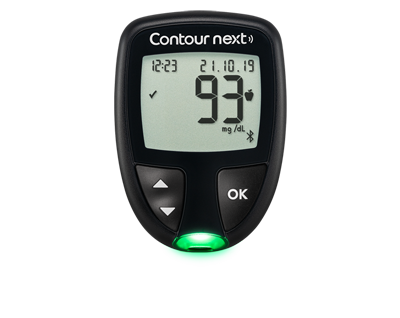
Das CONTOUR®NEXT Messgerät
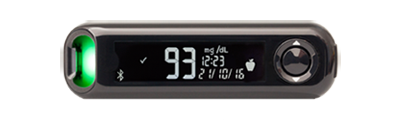
Das CONTOUR®NEXT ONE Messgerät
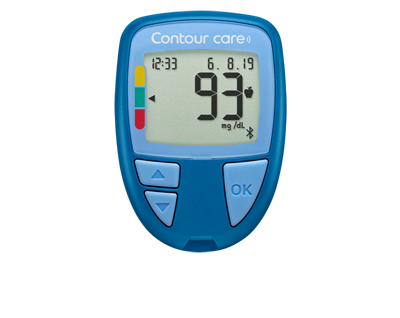
Das CONTOUR®CARE Messgerät
Benötigen Sie ein App-kompatibles CONTOUR® Blutzuckermessgerät?
Finden Sie das passende Messgerät für sich und testen Sie es kostenlos.

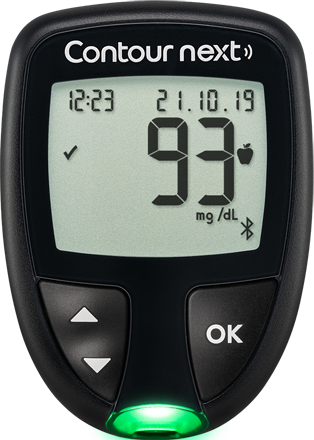
CONTOUR®NEXT
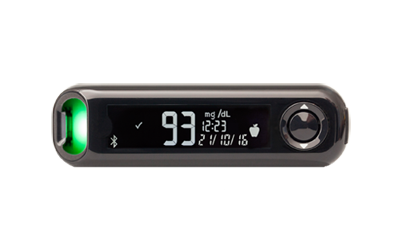
CONTOUR®NEXT ONE
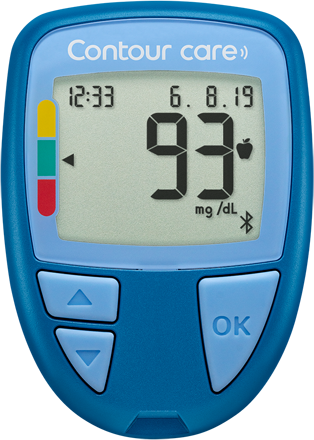
CONTOUR®CARE
Haben Sie Fragen?


*Auf einem kompatiblen Android- oder iOS-Gerät. Eine Liste kompatibler Geräte finden Sie untercompatibility.contourone.com
**Bitte besprechen Sie Ihre persönlichen Zielbereiche mit Ihrem Arzt.
1. Fisher W et al. User Experience With the Information–Motivation–Behavioral Skills (IMB)–Based CONTOUR®NEXT ONE Smart Meter and App System. Poster presented at the 78th Scientific Session of the American Diabetes Association (ADA); June 22-26, 2018; Orlando, Florida.
Die CONTOUR®DIABETES App wurde entwickelt um Menschen mit Diabetes zu unterstützen. Lernen Sie, wie Sie sich mit der App Ihren Alltag mit Diabetes erleichtern können.
Zielbereichsfarben für mehr Überblick
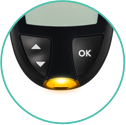
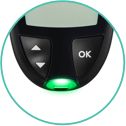
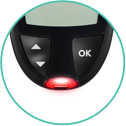
Ihr Messgerät überträgt die Messwerte automatisch an die CONTOUR®DIABETES App. Die App verwendet die gleichen Zielbereichsfarben in rot, grün oder gelb, um Ihnen einen besseren Überblick zu geben. Sie können Ihre individuellen Zielbereiche direkt in der App anpassen.**
Gelb
Über dem Zielbereich
Grün
Im Zielbereich
Rot
Unter dem Zielbereichs
Berichte an Ihren Arzt senden
Versenden Sie Ihre Messwerte ganz einfach an Ihren Arzt, oder nehmen Sie sie ausgedruckt mit zu Ihrem nächsten Termin..
Folgende Berichte stehen Ihnen zur Verfügung:
✔ Blutzuckermessbericht (PDF)
✔ Blutzuckertagebuch (PDF)
✔ Rohdatendatei (CSV)
Per per E-Mail versenden oder ausdrucken. Einfach auf Knopfdruck.
Video: Berichte an Ihren Arzt senden

Meine Muster
Lassen Sie sich über wiederkehrende Muster und Trends in Ihren Blutzuckerwerten informieren.Die App analysiert Ihre Messwerte und gibt Tipps zu möglichen Ursachen für zu hohe oder zu niedrige Werte.
✔ Überprüfen Sie Ihre letzten hohen oder niedrigen Messwerte.
✔ Nutzen Sie die Erinnerungsfunktion,um Ihre Werte zu verbessern.
✔ Schauen Sie sich zurückliegende Muster an.
✔ Fügen Sie bei Bedarf Notizen hinzu.
Sie haben es in der Hand und die App unterstützt Sie beim täglichen Umgang mit Ihrem Diabetes.
Video: Meine Muster
Messerinnerungspläne
Messen Sie effektiv und zum richtigen Zeitpunkt.So erfahren Sie, welche Auswirkungen Ernährung, Bewegung und Medikamente auf Ihren Blutzucker haben.
- Wählen Sie den für Sie passenden Messerinnerungsplan aus
- Geben Sie optimale Daten und Zeitpunkte ein
- Behalten Sie bestimmte Ereignisse im Auge
- Erhalten Sie hilfreiche Erkenntnisse für sich und Ihren Arzt
Video: Messerinnerungspläne
Installieren Sie die kostenlose App und starten Sie noch heute in ein modernes Diabetes Management!
Überprüfen Sie, ob Ihr Smartphone mit dieser App kompatibel ist
Benötigen Sie ein App-kompatibles CONTOUR® Blutzuckermessgerät?
Finden Sie das passende Messgerät für sich und testen Sie es kostenlos.
CONTOUR®NEXT
CONTOUR®NEXT ONE
CONTOUR®CARE
Haben Sie Fragen?
*Auf einem kompatiblen Android- oder iOS-Gerät.Eine Liste kompatibler Geräte finden Sie unter compatibility.contourone.com
**Bitte besprechen Sie Ihre persönlichen Zielbereiche mit Ihrem Arzt.
1. Fisher W et al. User Experience With the Information–Motivation–Behavioral Skills (IMB)–Based CONTOUR®NEXT ONE Smart Meter and App System. Poster presented at the 78th Scientific Session of the American Diabetes Association (ADA); June 22-26, 2018; Orlando, Florida.
Have a question about using your connected meter or CONTOUR®DIABETES app? Check out our frequently asked questions below.
Don’t see what you’re looking for? Feel free to contact us.
The following meters can be paired with the CONTOUR®DIABETES app and are hence part of the CONTOUR® Connected meter portfolio:
The new CONTOUR®NEXT meter, CONTOUR®NEXT ONE, CONTOUR®PLUS ONE and CONTOUR®CARE
There are two ways you can set up your CONTOUR® Connected meter: on the meter itself, or by using the CONTOUR®DIABETES app.
For instructions on initial setup from the meter itself, please see the User Guide that you received with your meter.
To set up your meter from the app, download the CONTOUR®DIABETES app, open the app, tap ‘Get started’ and follow the instructions. This will set up the meter and app at the same time.
You can switch the meter on by either:
– Pressing and holding down the large, round button on the side of the CONTOUR®NEXT ONE meter until it turns on. For the connected CONTOUR®NEXT or CONTOUR®CARE meter, press and hold the large OK button until it turns on.
or
– Inserting a test strip into the meter (this will automatically turn the meter on)
The connected CONTOUR®NEXT meter and the connected CONTOUR®NEXT ONE meter should always be used with the the CONTOUR®NEXT test strips. The CONTOUR®CARE meter should always be used with CONTOUR®CARE test strips. These have been specifically designed for use with the meter.
You may receive a bottle of test strips you need when you receive your meter, and can order subsequent test strips from your pharmacist when you need them. Never use other brands of test strips with your CONTOUR® connected meter.
The colored target range indicators on the CONTOUR® Connected meter gives you instant feedback on your blood glucose results. It immediately identifies your results as above, below or within target range to help you make decisions.
Amber = above target
Green = within target
Red = below target
If your first sample is insufficient to give a blood glucose reading, Second-Chance® sampling lets you apply more blood to the same test strip instead of using a new one. This may help you:
- Avoid having to prick your finger again
- Waste fewer strips (and lancets)
If the first sample was not enough, the Second-Chance® sampling feature will cause your CONTOUR® Connected meter to beep twice and display a flashing test strip icon. Apply more blood within the specified time to the test strip so there is enough for the meter to measure your blood glucose. Once you have added enough blood, the meter will automatically take a reading as usual.
Meter settings cannot be changed from the meter while the meter is connected to the app. To change settings on the meter either:
1. Scroll to the 'Settings' symbol on your connected meter and press OK. This will automatically disconnect your meter from your mobile device
Or
2. Turn your CONTOUR® Connected meter off and walk away from your mobile device to disconnect from the app, then turn your meter on and go to Settings to make any changes
If you’re just starting to use your connected meter and CONTOUR®DIABETES app, we recommend that you set up the app first. The meter is quickly and easily set up during the app setup when first getting started.
The CONTOUR®DIABETES app is designed for use with Bluetooth® Technology and is compatible with mobile devices running Apple iOS 10.0 and above, or Android Lollipop 5.0 and above.*
For select Android devices we have identified a pairing issue. On these devices the Bluetooth components do not allow them to maintain a connection to the CONTOUR® Connected meters, even when they are running Android 5.0 (Lollipop) and higher. For further information about which devices are affected by this issue, please contact Ascensia Customer Service.
If you are experiencing a problem pairing your CONTOUR® Connected meter with your mobile device, we recommend that you first verify that your device supports one of the operating system versions listed above and if it does, you should then update the OS on your mobile device to the latest version available. If this does not fix the issue, please contact Ascensia Customer Service.
Firstly, check that your device uses either Apple iOS or Android.
To download the CONTOUR®DIABETES app onto an Apple device:
- Open the App Store on your device
- Search for 'Contour diabetes'
- Select 'CONTOUR®DIABETES app' from the search results
- Tap 'Get', then 'Install'. You may be prompted to enter your iTunes account information. Tap 'OK' once you are done. The download process will then begin
- If you are still in the App Store, the 'Install' button will become an 'Open' button. You can either tap this to open the app or select the app icon from your device home screen
To download the CONTOUR®DIABETES app onto an Android device:
- Open the Google Play Store on your device
- Search for 'Contour diabetes'
- Select CONTOUR®DIABETES app from the search results
- Tap 'Install'. The download process will then begin
Once you have downloaded the CONTOUR®DIABETES app, keep it somewhere on your mobile device that you can access it easily, like your home screen or dock.
The initial setup of the CONTOUR®DIABETES app is simple.
- Open the app by tapping on the CONTOUR®DIABETES app icon on your mobile device
- Select the language you would like the app to use
- Select your country from the list
- An Intro-Tour is displayed after confirming language and country.
- Next you will now see the Welcome screen of the app with two options: ‘Set an Account' or ‘Log in’
- Tap ‘Set an Account’ and follow the instructions on screen to set up your CONTOUR®DIABETES app
When you start using your CONTOUR® Connected meter with the CONTOUR®DIABETES app you will need to pair the two devices. The app and meter will then seamlessly connect and sync using Bluetooth® technology. The Bluetooth® setting on your mobile device and meter will need to be switched on for the pairing and each time you test your blood glucose so that the app can sync the reading.
You can turn a meter setting off or on from the meter using the following steps:
- Turn off the meter and move away from your mobile device
- Turn your meter on
- Scroll to Settings
- Press 'OK' on each screen until you find the setting to change
- Use the up and down arrows to change the setting. Press 'OK'
To pair a meter to the CONTOUR®DIABETES app:
- Make sure the Bluetooth® setting on your mobile device is switched on
- Go to: Main Menu > Pair a Meter or if a meter was previously paired, go to: Main Menu > Settings > My Meters
- Tap ‘+ Pair a Meter’ then select the type of meter you want to pair
- Follow the steps outlined in the app
- You will be notified if the meter is successfully paired
- Tap ‘Continue’ to save the meter settings
Yes, you can pair multiple CONTOUR® Connected meters with the CONTOUR®DIABETES app, which merges together your blood glucose readings from the different meters. To do this, in the app go to: Main Menu > Settings > My Meters
- Tap '+' and follow the instructions on the screen to add another meter
- After you have paired a meter, the Settings screen is displayed. Change any settings that you need to here
- Tap 'Continue' to save the settings
Note that only one meter can connect to the app at any one time.
In the app go to: Main Menu > Settings > My Meters
Make sure that your meter is paired with the app first.
Tap the meter you want to rename and type the new name over it.
Unpairing removes the meter from the account and prevents the meter from connecting to the app and sending data back and forth. Existing meter data remains intact in the app. An unpaired meter can be paired to the app again at another time.
If you need to unpair a meter from your CONTOUR®DIABETES app, in the app go to: Main Menu > Settings > My Meters
- Tap the meter you want to unpair
- On the Meter Settings screen, tap 'Unpair this Meter' and 'Confirm' when you are prompted
Or
Go to: Main Menu > Settings > My Meters
- Swipe left on the meter you want to unpair
- Tap the red 'Unpair' button and 'Confirm' when you are prompted
Your meter must be on and connected to the app if you want to change meter settings from the app. Only the Meter Name and the Unpairing feature can be changed from the app when the meter is not connected.
Tap 'Menu', 'Done', or 'X' to go back to the previous screen.
In most instances, yes. The app auto-saves most items and does not always require you to tap 'Save'.
Yes. Your CONTOUR® connected meter will sync with the CONTOUR®DIABETES app each time your meter and mobile device are within close range when you have the Bluetooth® settings switched on. If you need to take a blood glucose reading without your mobile device close by, don't worry; your meter has enough memory to store up to 800 blood glucose readings so it will save any results it reads until the next time it can sync with the app.
The app Menu options are as follows:
- My Readings – view, edit and manage your BG readings
- My Patterns – get notifications if certain patterns are detected in your BG readings
- My Reminders – set reminders to take medication, test your BG, and more
- My Care – adjust details on your therapy, add your healthcare team and send reports
- My meal planner (UK only) - This feature lets you create a food preference profile that personalizes recipes, meal planning and nutritional tips.
- App Connections – connect with other health apps on your smart phone
- Settings – manage your app and meter settings
- Help – find FAQs and instructions to answer questions you may have
The blood glucose reading colors in the CONTOUR®DIABETES app match the colors of the colored target range indicators on the Connected meter to let you know how your blood glucose reading compares with your target range.
Amber = above target
Green = within target
Red = below target
Blood glucose readings that have been synced from the meter cannot be deleted in the app; only manually entered blood sugar readings can be deleted.
Tap the small graph to see the expanded graph or, whilst you are viewing My Readings in the app, turn your mobile device sideways so it is in a landscape position.
On the graph, circle symbols are blood glucose readings automatically collected from the meter via Bluetooth® technology. Diamond symbols are readings that have been added manually. If you want to see detailed information for any given point, tap on the symbol on the graph.
The Averages mode lets you see blood glucose averages over a period; the Standard mode shows your individual blood glucose readings over a single day. For more information:
- Go to: Main Menu > My Readings
- Turn your mobile device sideways or tap the graph at the top of My Readings
- Tap 'i' at the top of Expanded Graph
To change the time period displayed on the Expanded Graph:
- Tap the white button at the top of the screen
- Select a 3-day, 7-day, 14-day or 30-day time period from the Days list
Yes, if you have logged carbs and/or insulin dosing in the CONTOUR®DIABETES app, you can view this information next to each reading in the expanded graph. To do this, go to: Main Menu > My Readings.
- Turn your mobile device horizontal to see the expanded graph
- Tap the 'i' icon in the top left-hand corner of the screen
- In the 'Insulin/Carbs' column, select whether you want to view insulin, carbs or both on your graph
- Find the blood glucose reading in My Readings and tap it
- When the Edit screen opens, tap the round icons to add a Photo, Activity, Meal, medication, or write or record notes
- Tap 'Done' when you are finished
- Find the blood glucose reading in My Readings
- Tap the area around the time of the reading to open the details; tap again on the area around the time to close the details
To add a blood glucose reading manually, in the app go to: Main Menu > My Readings
- Tap '+' in the upper right corner of the screen. The system uses the current date and time in your mobile device for the new reading
- To change the date or time, tap the matching button and scroll to the desired date or time. Tap 'Done' to save your selection
- To enter a blood glucose value, tap the empty blood glucose reading button, type the number then tap 'Done'. The Meal Marker screen is now available
- The app pre-selects a Meal Marker and meal type based on the time of the reading. Tap 'Save' to confirm or tap another marker and/or meal type. Note: You can tap again on a Meal Marker or meal type to de-select it. You can tap 'No Mark' if you do not want a Meal Marker and meal attached to this reading
- Tap 'Save' when you are finished with Meal Markers
- The Edit screen displays so you can add details to your reading such as a photo, note, activity, meal or medication
- Tap 'Done' to save the manual reading
You can change blood glucose readings that have been entered manually, but not those automatically synced from your meter. To do this, tap the reading in My Readings. Here you can add details such as a picture, activity or medication. With the Edit screen open, tap the blood glucose reading again to add a Meal Marker to the reading.
- Find the manual blood glucose reading or the listed item in My Readings
- Swipe left across the reading and tap the red 'Delete' button that appears
Note that you can change blood glucose readings that have been entered manually, but not those automatically synced from your meter.
These symbols are Meal Markers. Meal Markers allow your meter and app to compare blood glucose readings against the related target ranges, and help you to see how different meals affect your blood glucose. You can select the appropriate marker on your meter or app each time you take a blood glucose reading. There are three variations of the apple symbol:
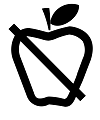
Fasting Meal Marker
Choose this if you are testing your blood glucose after about 8 hours without eating

Before-meal Meal Marker
Choose this if you are testing your blood glucose within 1 hour before a meal
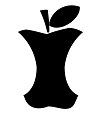
After-meal Meal Marker
Choose this if you are testing your blood glucose within 2 hours after the first bite of a meal
The app provides Day Divider time periods for Breakfast, Lunch, Dinner and Overnight that you can change to fit your own schedule. For your convenience, the app pre-selects a meal type for you based on when you took the reading and the Day Divider it belongs to.
The Meal Marker feature is always available in the app. If you turn off Meal Markers in the meter, your blood sugar readings can only be marked as Before Meal, After Meal or Fasting when you are in the app. If you leave the Meal Marker Prompt Screen setting on in the app, the Meal Marker screen displays automatically each time a blood sugar reading is synced from the meter.
- Open the app and tap the blood glucose reading listed in My Readings
- When the Edit screen appears, tap the blood glucose reading again to open the Meal Marker screen. You can change or add a Meal Marker and a meal type from this screen
OR
- Open the app and tap the blood glucose reading listed in My Readings
- When the Edit screen appears, tap the Meal icon and then tap 'Meal Marker'. You can change or add a Meal Marker and a meal type from this screen Note: If you change the Meal Marker on a blood glucose reading, it will be compared against a different target range and may change color based on this new target.
- Find the blood glucose reading in My Readings and tap it
- When the Edit screen opens, if you have never marked the blood glucose reading before, the Meal Marker screen will open automatically. If you have previously marked it, tap the blood glucose reading again or use the Meal Marker button under the Meal tab to add or change the Meal Marker and meal type. Note: You can tap again on a Meal Marker or meal type to de-select it. You can tap 'No Mark' if you do not want a Meal Marker and meal attached to this reading
- Tap 'Save' when you are finished with Meal Markers
- The Edit screen displays so you can add details to your reading such as a photo, note, activity, meal or medication
- Tap 'Done' to save the blood glucose reading
- Go to: Main Menu > Settings > App Preferences
- Change the Meal Marker Prompt screen setting to off
You can choose to set up reminders based on the time, a certain blood glucose reading, or to take medication based on your blood glucose result. Additionally, you have the option to set up a reminder as soon as a Before Meal reading syncs to the app. To set up a reminder go to:
Main Menu > My Reminders
- Tap '+' in the top right-hand corner of the app
- Follow the instructions on screen
To delete a one-time countdown reminder:
- Go to: Main Menu > My Reminders
- Tap 'X' on the bottom of the screen that shows the countdown time
To delete a recurring reminder:
- Go to: Main Menu > My Reminders
- Swipe left on the alert and tap the red 'Delete' button
To temporarily disable a reminder:
- Go to: Main Menu > My Reminders
- Tap the toggle switch to turn it off; it will turn white
You can use the Test Reminder Plans feature to set up a series of reminders to see how different activities in your life affect your BG readings, or before a healthcare visit. To set up Test Reminder Plans go to:
Main Menu > My Reminders.
- Tap the '+' in the top right-hand corner of the screen
- When you are prompted, select a Test Reminder Plan. The Test Reminder Plans screen opens so you can select a plan that fits your schedule
Reminders you have set continue to display at the same time each day. You can also set up a one-time reminder to test after a 'Before Meal' reading. Test Reminder Plans allow you to set up a fixed series of reminders over a particular period of time. They are designed to help you manage a pattern in your BG readings or to help you prepare for a visit with your healthcare professional.
The CONTOUR®DIABETES app can notify you if certain trends are detected in your BG readings. These are called 'patterns.' For example, the app may detect a pattern of high BG at lunchtime. The My Patterns feature lets you:
- View helpful notifications of trends in your BG
- Learn about possible causes of your patterns
- Use reminders to help improve the pattern
- Track your progress and see how you improve the pattern over time
You can select one or more pattern types from My Patterns on the main menu. This tells the app that you want to be notified when this type of pattern is detected.
To change your pattern notification settings go to:
Main Menu > My Patterns
- Tap 'More' in the top right-hand corner
- Tap 'Pattern Selection'
- Select the patterns that you want to track by switching them on or off
When your BG readings improve a pattern that you are working on within a certain time period, the pattern is considered 'improved'. The app saves 'Improved' patterns in My Patterns > Pattern History
The CONTOUR®DIABETES app needs at least 14 days of BG readings to detect certain patterns. If you test regularly and mark your readings with meals and Meal Markers, My Patterns is able to detect patterns more easily.
You can exit a pattern at any time and move it to your pattern history. If you get a notification about a pattern that you do not want to track, tap 'No' when you are prompted to set a reminder and tap 'yes' when the 'Move to History' option displays on the pattern screen. To do this from the Main Menu, go to:
Main Menu > My Patterns
- Tap on the pattern
- Tap 'Move to History'
If you have automatic date/time syncing turned on in the CONTOUR®DIABETES app, the app will automatically update your CONTOUR® Connected meter with the date and time. If you didn't switch on this feature in the initial app setup, go to:
Main Menu > Settings > App Preferences
Tap Meter 'Time and Date Sync' toggle to turn it on.
How do I ensure my CONTOUR® Connected meter time and date always sync with the CONTOUR®DIABETES app?
You need to turn on automatic date and time syncing.
- In the app go to: Main Menu > Settings > App Preferences
- Tap the Meter Time and Date Sync toggle to turn it on Whenever your meter connects with the app, the time and date on the meter will automatically sync with the app.
- Turn your meter on and make sure that your meter is paired with the app first.
- In the app go to: Main Menu > Settings > My Meters and select the meter you want to sync
- Tap 'Sync time and date'
If you do not have automatic date/time syncing turned on in the CONTOUR®DIABETES app preferences area, the meter is not updated with the mobile device time and date unless you do a manual sync. To set automatic time/date syncing between your meter and mobile device:
- Go to: Main Menu > Settings > App Preferences
- Turn on Meter Time and Date Sync
Yes. The My Profile feature in the app lets you store any appointments you have booked and contact information for your healthcare team. Go to:
Main Menu > My Care > Appointments to add an appointment, or go to: Main Menu > My Care > Healthcare Team
You can send a summary report of your BG readings from the app, but you must have added either an appointment or a healthcare professional first.
To send a formatted PDF summary report from the app, go to:
Main Menu > My Care > Appointments or Healthcare Team
From Appointments
- Tap an upcoming appointment
- Tap Send a Report
- Select the type of report you want to send. Agree to consent if pop-up appears
- Enter the Name of the patient, then tap on View Report
- Tap on download icon at the bottom of the screen and select the way you want to send the report (email, text, etc)
- For Email, enter the recipient email address/addresses (will not auto-populate) and tap send when ready
From Healthcare Team
- Tap Healthcare Team
- Tap Send a Report
- Select the type of report you want to send. Agree to consent if pop-up appears
- Enter the Name of the patient, then tap on View Report
- Tap on download icon at the bottom of the screen and select the way you want to send the report (email, text, etc)
- For Email, enter the recipient email address/addresses (will not auto-populate) and tap send when ready
Yes, you can export your BG data as a CSV file. This file is unformatted and just contains raw data. To do this, go to:
Main Menu > My Care > Reports
- Tap 'Send a CSV file'
- This will open a new email on your mobile device so that you can send the file to a recipient of your choice
Yes. Although target ranges may have been confirmed on the CONTOUR® Connected meter, you can change them from the CONTOUR®DIABETES app. You can do this at any time by going to:
Main Menu >My Care > under My Therapy click on Target Ranges
Each time you connect your meter to the app the meter is updated with the current app target ranges if they have changed.
Always consult your doctor before setting or changing your target ranges.
Can I change my target ranges after I have set up the CONTOUR® Connected meter and CONTOUR®DIABETES app**?
Yes. You can change target ranges from the app at any time by going to: Main Menu > My Care > under My Therapy click on Target Ranges
You can change the high and low limits of your Before Meal (same as Fasting) and After Meal (same as Overall) target ranges when you slide the handles up or down. You can also use '+' or '–' to move a value up or down.
Always consult your doctor before setting or changing your target ranges.
In the app, go to:
Main Menu > My Care > under My Therapy click on Target Ranges
The Critical High handle has a yellow outline. This is the highest blood glucose value you can set. The Critical Low handle has a red outline. This is the lowest value you can set. Slide the handles up or down to change the Critical Values. You can also use '+' or '–'to move a value up or down. Always consult your doctor or nurse before setting or changing your critical high/low settings.
You have probably not synced (connected) your meter with the app since you last changed the targets in the app. To sync your meter with the app:
- Switch your meter on and make sure it is near your mobile device
- Make sure the Bluetooth® setting on your mobile device is turned on The CONTOUR®DIABETES app should now be able to sync data with your CONTOUR® Connected meter and update your target ranges.
Your meters may have different target ranges, but this is not recommended. Your meters should stay in sync with the app target ranges. Paired CONTOUR® Connected meters are updated with the most recent app targets whenever they connect to the app.
As soon as you pair your CONTOUR® Connected meter to the CONTOUR®DIABETES app, you are able to add a Meal Marker to a blood glucose reading. Since every Meal Marker is evaluated against a related target range, the new ranges associated with each Meal Marker become available for you to see.
The Fasting Target range is always preset to be the same as your Before Meal Target Range, and this range can be changed in the app.** The meter displays a separate Fasting Target because it has a Fasting Meal Marker attached to it.
To create an account from the initial app setup, just follow the instructions on screen.
- When asked for a CONTOUR®CLOUD ID enter your email address. You should use a personal email address that you check often
- Next you will need to answer a series of questions, which are used to create a section called About Me. (The About Me section can be found under Settings > My Account > About Me.)
- Verify account by clicking the link emailed to you by CONTOUR® Diabetes Solutions
- Tap 'Continue' on the app screen
No. It is best to stay signed in to your app account even when you close the app. When you stay signed in to the app on one or more mobile devices, your information is backed up regularly and all the app features are available to you.
- Go to: Main Menu > Settings > My Account.
- Tap the email address to change it.
Creating a CONTOUR®CLOUD account will help you to get the most out of your CONTOUR® Connected meter by unlocking all the features that the app has to offer. Creating an account will also allow the app to store your blood glucose readings in the CONTOUR®CLOUD so that you can view your data from up to four different meters on multiple mobile devices. Follow the instructions on screen when you open the app to set up an account. Your mobile device will need to be connected to the internet for this to work.
If you’ve set up a CONTOUR®CLOUD account, your app data is automatically backed up to the CONTOUR®CLOUD regularly when your device is connected to the internet. If you sign in to the app as a Guest, your data is not saved or backed up to the cloud.
No data that can be identified as yours is shared with any person or business unless you choose to share it with someone, for example your doctor, nurse or caregiver. You can view our privacy policy here.
Your CONTOUR® Connected meter and app must be in close range of each other to stay connected. Try moving your meter and mobile device closer together.
If your CONTOUR® Connected meter is not connecting to the CONTOUR®DIABETES app, check that:
- Your meter is switched on.
- You have paired your meter with the app on your mobile device.*
- The Bluetooth® settings on your meter and mobile device are switched on.
- Your meter is close to your mobile device.
There are at least two possible reasons for this error message:
- You are not connected to the Internet. Check your Internet connection and make sure that the Mobile Data feature is turned on in your mobile device settings (Note: Internet/Data usage fees may apply.)
- Your network administrator has set proxy or firewall restrictions on your network
- Talk to your network administrator about allowing connection to CONTOUR®ONE servers from your mobile device
- Consider trying an alternative Internet connection such as switching to mobile data or connecting from your home. Note: Internet/Data usage fees may apply.
Yes, there is a Help section in the menu of the app. To access it, go to: Main Menu > Help
From the Help screen you can search topics using key words, or browse the help categories displayed.
If you still need help, contact Customer Service by calling the number on the back of your meter or contact us.
*Auf einem kompatiblen Android- oder iOS-Gerät. Eine Liste kompatibler Geräte finden Sie untercompatibility.contourone.com
**Bitte besprechen Sie Ihre persönlichen Zielbereiche mit Ihrem Arzt.
1. Fisher W et al. User Experience With the Information–Motivation–Behavioral Skills (IMB)–Based CONTOUR®NEXT ONE Smart Meter and App System. Poster presented at the 78th Scientific Session of the American Diabetes Association (ADA); June 22-26, 2018; Orlando, Florida.